GETTING STARTED
Kore.ai XO Platform
Virtual Assistants Overview
Natural Language Processing (NLP)
Concepts and Terminology
Quick Start Guide
Accessing the Platform
Navigating the Kore.ai XO Platform
Building a Virtual Assistant
Help & Learning Resources
Release Notes
Current Version
Recent Updates
Previous Versions
Deprecations
Request a Feature
CONCEPTS
Design
Storyboard
Overview
FAQs
Conversation Designer
Overview
Dialog Tasks
Mock Scenes
Dialog Tasks
Overview
Navigate Dialog Tasks
Build Dialog Tasks
Node Types
Overview
Intent Node
Dialog Node
Dynamic Intent Node
GenAI Node v2
Configure GenAI Node v2
GenAI Node
GenAI Prompt
Entity Node
Form Node
Confirmation Node
Message Nodes
Logic Node
Bot Action Node
Service Node
Webhook Node
Script Node
Process Node
Agent Transfer
Node Connections
Node Connections Setup
Sub-Intent Scoping
Entity Types
Entity Rules
User Prompts or Messages
Voice Call Properties
Knowledge AI
Introduction
Knowledge Graph
Introduction
Terminology
Build a Knowledge Graph
Manage FAQs
Knowledge Extraction
Import or Export Knowledge Graph
Prepare Data for Import
Importing Knowledge Graph
Exporting Knowledge Graph
Auto-Generate Knowledge Graph
Knowledge Graph Analysis
Answer from Documents
Alert Tasks
Small Talk
Digital Skills
Overview
Digital Forms
Digital Views
Introduction
Widgets
Panels
Session and Context Variables
Context Object
Intent Discovery
Train
NLP Optimization
ML Engine
Overview
Model Validation
FM Engine
KG Engine
Traits Engine
Ranking and Resolver
Training Validations
NLP Configurations
NLP Guidelines
LLM and Generative AI
Introduction
LLM Integration
Kore.ai XO GPT Module
Prompts & Requests Library
Co-Pilot Features
Dynamic Conversations Features
PII and Sensitive Data Anonymization
Guardrails
Intelligence
Introduction
Event Handlers
Contextual Memory
Contextual Intents
Interruption Management
Multi-intent Detection
Amending Entities
Default Conversations
Conversation Driven Dialog Builder
Sentiment Management
Tone Analysis
Default Standard Responses
Ignore Words & Field Memory
Test & Debug
Overview
Talk to Bot
Utterance Testing
Batch Testing
Conversation Testing
Conversation Testing Overview
Create a Test Suite
Test Editor
Test Case Assertion
Test Case Execution Summary
Glossary
Health and Monitoring
NLP Health
Flow Health
Integrations
Actions
Actions Overview
Asana
Configure
Templates
Azure OpenAI
Configure
Templates
BambooHR
Configure
Templates
Bitly
Configure
Templates
Confluence
Configure
Templates
DHL
Configure
Templates
Freshdesk
Configure
Templates
Freshservice
Configure
Templates
Google Maps
Configure
Templates
Here
Configure
Templates
HubSpot
Configure
Templates
JIRA
Configure
Templates
Microsoft Graph
Configure
Templates
Open AI
Configure
Templates
Salesforce
Configure
Templates
ServiceNow
Configure
Templates
Stripe
Configure
Templates
Shopify
Configure
Templates
Twilio
Configure
Templates
Zendesk
Configure
Templates
Agents
Agent Transfer Overview
Custom (BotKit)
Drift
Genesys
Intercom
NiceInContact
NiceInContact(User Hub)
Salesforce
ServiceNow
Configure Tokyo and Lower versions
Configure Utah and Higher versions
Unblu
External NLU Adapters
Overview
Dialogflow Engine
Test and Debug
Deploy
Channels
Publishing
Versioning
Analyze
Introduction
Dashboard Filters
Overview Dashboard
Conversations Dashboard
Users Dashboard
Performance Dashboard
Custom Dashboards
Introduction
Custom Meta Tags
Create Custom Dashboard
Create Custom Dashboard Filters
LLM and Generative AI Logs
NLP Insights
Task Execution Logs
Conversations History
Conversation Flows
Conversation Insights
Feedback Analytics
Usage Metrics
Containment Metrics
Universal Bots
Introduction
Universal Bot Definition
Universal Bot Creation
Training a Universal Bot
Universal Bot Customizations
Enabling Languages
Store
Manage Assistant
Team Collaboration
Plan & Usage
Overview
Usage Plans
Templates
Support Plans
Invoices
Authorization
Conversation Sessions
Multilingual Virtual Assistants
Get Started
Supported Components & Features
Manage Languages
Manage Translation Services
Multiingual Virtual Assistant Behavior
Feedback Survey
Masking PII Details
Variables
Collections
IVR Settings
General Settings
Assistant Management
Manage Namespace
Data
Overview
Guidelines
Data Table
Table Views
App Definitions
Data as Service
HOW TOs
Build a Travel Planning Assistant
Travel Assistant Overview
Create a Travel Virtual Assistant
Design Conversation Skills
Create an ‘Update Booking’ Task
Create a Change Flight Task
Build a Knowledge Graph
Schedule a Smart Alert
Design Digital Skills
Configure Digital Forms
Configure Digital Views
Train the Assistant
Use Traits
Use Patterns
Manage Context Switching
Deploy the Assistant
Use Bot Functions
Use Content Variables
Use Global Variables
Use Web SDK
Build a Banking Assistant
Design Conversation Skills
Create a Sample Banking Assistant
Create a Transfer Funds Task
Create a Update Balance Task
Create a Knowledge Graph
Set Up a Smart Alert
Design Digital Skills
Configure Digital Forms
Configure Digital Views
Add Data to Data Tables
Update Data in Data Tables
Add Data from Digital Forms
Train the Assistant
Composite Entities
Use Traits
Use Patterns for Intents & Entities
Manage Context Switching
Deploy the Assistant
Configure an Agent Transfer
Use Assistant Functions
Use Content Variables
Use Global Variables
Intent Scoping using Group Node
Analyze the Assistant
Create a Custom Dashboard
Use Custom Meta Tags in Filters
APIs & SDKs
API Reference
API Introduction
Rate Limits
API List
koreUtil Libraries
SDK Reference
SDK Introduction
Web SDK
How the Web SDK Works
SDK Security
SDK Registration
Web Socket Connect and RTM
Tutorials
Widget SDK Tutorial
Web SDK Tutorial
BotKit SDK
BotKit SDK Deployment Guide
Installing the BotKit SDK
Using the BotKit SDK
SDK Events
SDK Functions
Installing Botkit in AWS
Tutorials
BotKit - Blue Prism
BotKit - Flight Search Sample VA
BotKit - Agent Transfer

ADMINISTRATION
Intro to Bots Admin Console
Administration Dashboard
User Management
Managing Your Users
Managing Your Groups
Role Management
Manage Data Tables and Views
Bot Management
Enrollment
Inviting Users
Sending Bulk Invites to Enroll Users
Importing Users and User Data
Synchronizing Users from Active Directory
Security & Compliance
Using Single Sign-On
Two-Factor Authentication for Platform Access
Security Settings
Cloud Connector
Analytics for Bots Admin
Billing
  1. Docs
  2. Virtual Assistants
  3. Bot Administration
  4. Security & Compliance
  5. BYOK Integration Guide for AWS

BYOK Integration Guide for AWS

Bring Your Own Key (BYOK) encryption in Kore’s public cloud SaaS enables enterprises to retain complete control over their encryption keys while protecting sensitive data. With BYOK, organizations use their own Customer Master Keys (CMKs) to encrypt application and bot data, ensuring stronger security and compliance.

Kore’s BYOK solution integrates with external key management systems such as AWS Key Management Service (KMS). Customers retain ownership of their encryption keys while leveraging Kore’s secure, scalable cloud platform with HSM-backed keys.

Prerequisites

  • Active Kore.ai subscription (platform.kore.ai) with BYOK enabled.
  • AWS account with administrative access to IAM and KMS.
  • Permissions to create IAM roles and policies.
  • Permissions to create and manage KMS keys.

Information Exchange

The BYOK integration requires coordination between you (the customer) and the Kore.ai support team. Key information exchanged between Kore.ai and you is summarized in the table.

Information Description and Purpose Provided By
Service Role ARN The Amazon Resource Name (ARN) of the IAM role in Kore.ai’s AWS account. You add this to your IAM role’s trust policy to allow Kore.ai’s service to assume your role.

Service Role ARN for platform.kore.ai:

arn:aws:iam::358587034707:role/SegBots-Servers-Role

Note: Contact Kore.ai Support if your SaaS instance differs from platform.kore.ai.

Kore.ai
External ID A unique identifier (similar to a password) that Kore.ai uses when assuming your IAM role to prevent unauthorized access.
External ID is auto-populated within the Bot Admin Console. 
Kore.ai
Role ARN The ARN of the IAM role created in your AWS account. Kore.ai assumes this role to access your KMS key.

Example:

arn:aws:iam::<your-account-id>:role/BYOK_Role

Share this with Kore.ai after completing the steps in the Integration Process section.

Customer
CMK ARN The ARN of your Customer Managed Key (CMK) in AWS KMS. This key is used by Kore.ai to encrypt and decrypt your data.

Example:

arn:aws:kms:<region>:<your-account-id>:key/<key-id>

Follow the steps in the Integration Process section to create and share this value.

Integration Process

The BYOK integration involves six main steps:

  1. Create IAM Policy: Define KMS permissions (encrypt, decrypt, generate keys, describe key).
  2. Create IAM Role: Establish a trust relationship with Kore.ai and attach the IAM policy.
  3. Create KMS Key: Set up a Customer Managed Key for encryption operations.
  4. Update KMS Key Policy: Grant the IAM role explicit access to use the KMS key.
  5. Verify Configuration: Confirm all components are correctly configured.
  6. Share Information: Provide your Role ARN and CMK ARN to Kore.ai support.

Step 1: Create IAM Policy

This policy defines the KMS permissions for your BYOK role.
1. Go to AWS Console → IAM → Policies.
2. Click Create policy.
3. Select the JSON tab and paste this policy:

{ "Version": "2012-10-17",
        "Statement": [
        {  
        "Sid": "BYOK KMSPermissions",
        "Effect": "Allow",
        "Action": [
            "kms:Encrypt",
            "kms:Decrypt",
            "kms:GenerateDataKey*",
            "kms:DescribeKey"
                ],
            "Resource": "arn:aws:kms:REGION:ACCOUNT_ID:key/KEY_ID"
                }
            ]
    }

4. Click Next.
5. Name the policy (e.g., BYOK_KMS_Policy).
6. Add an appropriate description, for example: “Policy granting KMS permissions for BYOK integration with Bot Admin Console”.
7. Click Create policy.

Note: Replace REGION, ACCOUNT_ID, and KEY_ID with your values. You can use “Resource”: “*” initially and update it after creating your KMS key.

Step 2: Create IAM Role

This role establishes trust with Kore.ai and uses the policy from Step 1.

  1. Go to AWS Console → IAM → Roles.
  2. Click Create role.
  3. Select AWS Account as the trusted entity type.
  4. Select This account.
  5. Click Next.
  6. Select the BYOK_KMS_Policy from Step 1.
  7. Click Next.
  8. Name the role (e.g., BYOK_Role).
  9. Add an appropriate description, for example: “Role for BYOK integration with Bot Admin Console.”
  10. Click Create role.

Update Trust Policy

Configure the role to trust Kore.ai’s Service Role:

  1. Go to the BYOK_Role you just created.
  2. Click the Trust relationships tab.
  3. Click Edit trust policy.
  4. Replace the policy with the following:
    { "Version": "2012-10-17",
    "Statement": [
    {
    "Effect": "Allow",
        "Principal": {
        "AWS":"arn:aws:iam::358587034707:role/SegBots-Servers-Role"
        },
        "Action": "sts:AssumeRole",
        "Condition": {
        "StringEquals": {
            "sts:ExternalId": "<EXTERNAL-ID-PROVIDED-BY-KORE>"
        }
        }
    }
    ]
    }
    
  5. Click Update policy.

Step 3: Create KMS Key

Create a Customer Managed Key for encryption.

  1. Go to AWS Console → KMS → Customer managed keys.
  2. Click Create key.
  3. Select Symmetric as the key type.
  4. Select Encrypt and decrypt as the key usage.
  5. Click Next.
  6. Enter key details:
    1. An Alias (e.g., byok-kore-ai-key).
    2. An appropriate Description, for example: “Customer managed key for BYOK integration with Bot Admin Console.
  7. Click Next.
  8. Under Key administrators, add your administrator users or roles as those who should manage this key.
  9. Click Next.
  10. Add the BYOK_Role as a key user.
  11. Click Next.
  12. Review the key configuration and click Finish.

Step 4: Update KMS Key Policy

Add the BYOK_Role to the key policy to grant explicit access.

  1. Go to your KMS key.
  2. Click the Key policy tab.
  3. Click Edit.
  4. Add the customer role statement to the existing Statement array (don’t remove other statements).
    {
    "Sid": "Allow use of the key",
    "Effect": "Allow",
    "Principal": {
        "AWS": "arn:aws:iam::ACCOUNT_ID:role/BYOK_Role"
    },
    "Action": [
        "kms:Encrypt",
        "kms:Decrypt",
        "kms:GenerateDataKey*",
        "kms:DescribeKey"
    ],
    "Resource": "*"
    }
    

    Note

    Replace ACCOUNT_ID with your AWS account ID.

  5. Save the policy.

Step 5: Verify Configuration

Confirm all components are correctly configured:

Item Verification
IAM Policy Confirm BYOK_KMS_Policy exists with correct KMS actions.
Policy Attachment Verify policy is attached to BYOK_Role under the Permissions tab.
Trust Relationship Confirm the Trust relationships tab shows Kore.ai Service Role ARN.
KMS Key Policy Verify key policy includes both the root account and BYOK_Role statements.
Key Users Confirm BYOK_Role appears under Key users in the KMS console.

Step 6: Share Information with Kore.ai

Contact Kore.ai support and provide the following:

  • CMK ARN: arn:aws:kms:<region>:<your-account-id>:key/<key-id>
  • Role ARN: arn:aws:iam::<your-account-id>:role/BYOK_Role

The Kore.ai support team will configure the integration (trust relationship between Kore and your AWS tenant) on their end and notify you when it’s complete.

You can now configure and enable data encryption in Bot Admin Console using your AWS KMS, as explained in the next section.

Configure BYOK Encryption in Platform

You can enable BYOK encryption by configuring it within the Bot Admin Console. This process connects your AWS KMS key to the Bot Admin Console. During configuration, you can choose which applications and bots will use it.

Configuration Steps

  1. In the Admin Console, go to Enterprise Key.
  2. Click Create Key under the Bring Your Own Key section.
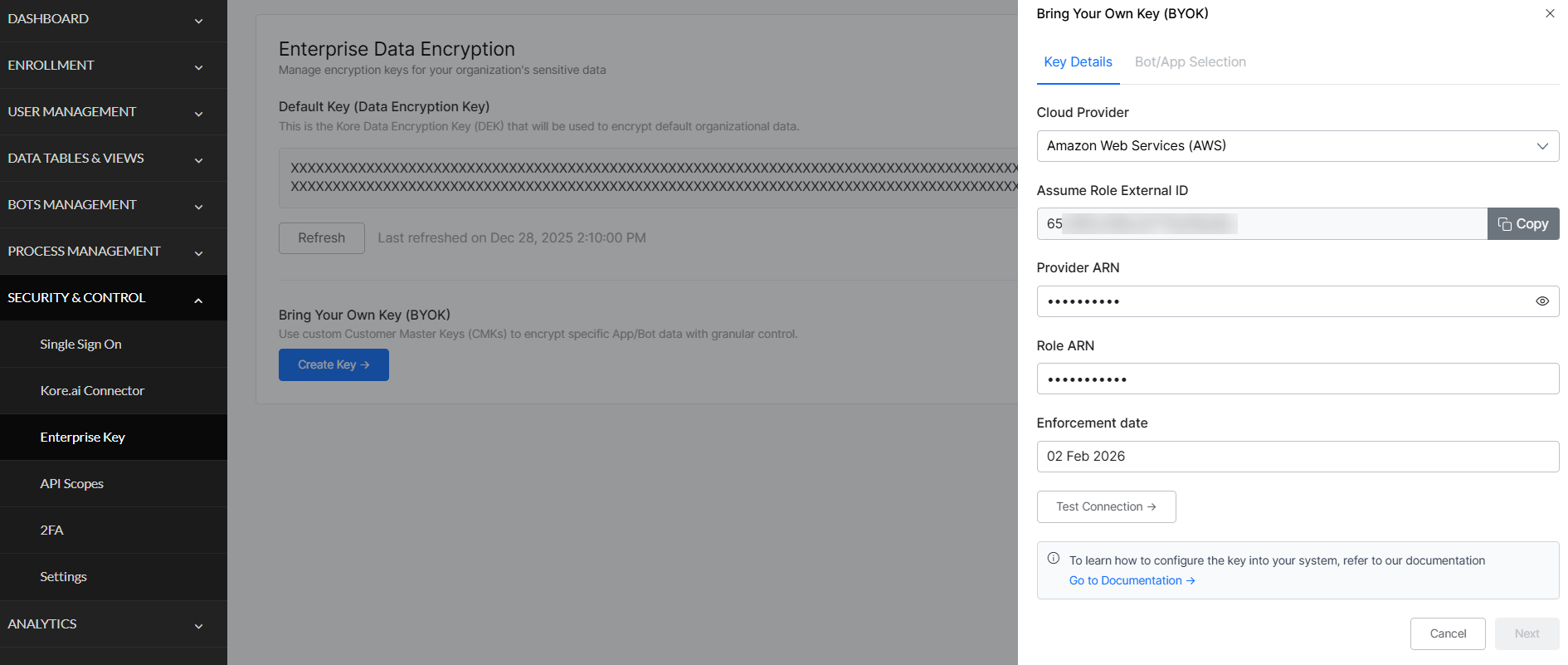
  3. Enter AWS Details:
    • Cloud Provider: Select Amazon Web Services (AWS).
    • Assume Role External ID: Auto-populated.
    • Provider ARN: Enter your CMK ARN.
    • Role ARN: Enter your Role ARN.
  4. Set Enforcement Date: Choose when encryption will begin. This is the date your CMK starts encrypting data.
    Note: You can modify the CMK and retest until the enforcement date. After this date, you can only rotate the key or update which apps/bots are encrypted.
  5. Test Configuration: Click Test Configuration to validate the connection. The system will test the connection to your KMS, authentication, and encryption and decryption operations. Verify all tests pass before continuing.
  6. Select Apps and Bots: Click Next to view all applications and bots in your workspace.
    • All apps and bots are selected by default.
    • Deselect any apps/bots you want to keep on the default Kore.ai encryption.
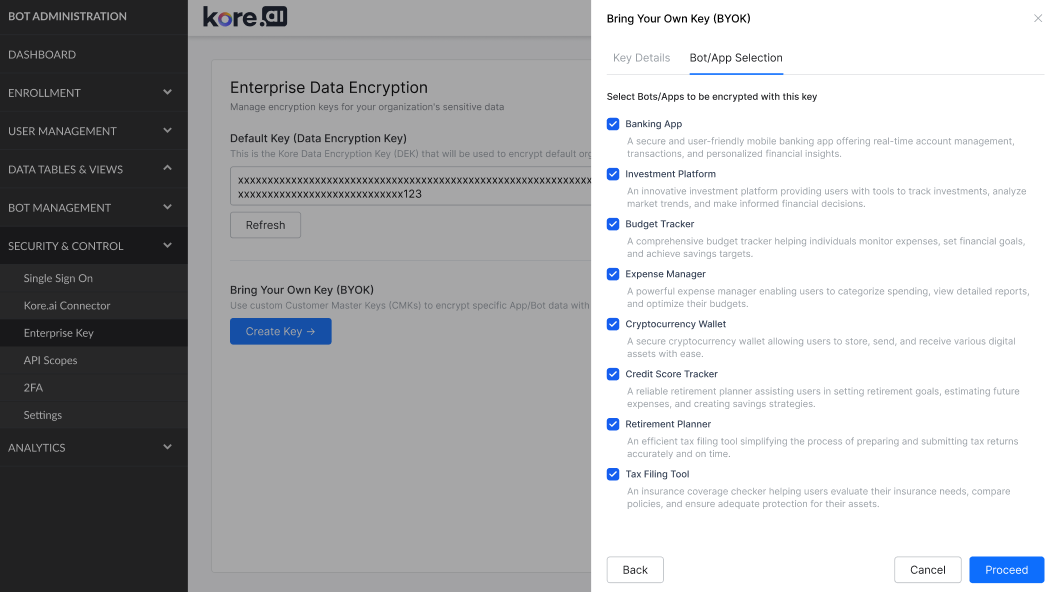
  7. Complete Setup: Click Proceed to complete the process. Your CMK is added to the enterprise keys list, and encryption begins on the enforcement date.

Validation (Optional)

After the enforcement date, You can verify that encryption is working by using one of the following options:

Option 1: View Analytics

Check analytics data for recent chat interactions to confirm that encrypted data is accessible.

Option 2: Test Application Authorization

Open the application and run Authorization Profiles and Dialogs.

  • Execute BasicAuthValidationDialog.
  • When the bot displays the authorization link, click the link and enter the credentials (admin/password).

Example:
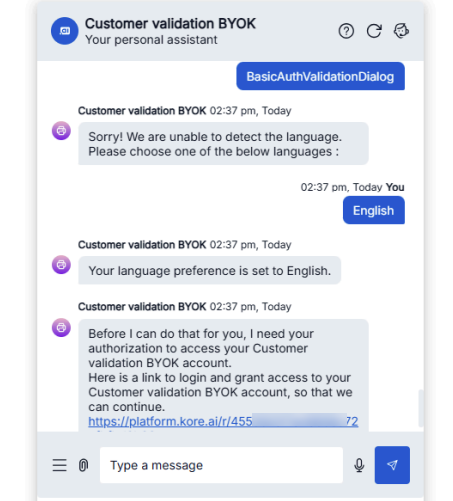
If successful, the system redirects you and displays “Basic authentication successful.” This confirms your encrypted credentials are correctly stored and retrieved using your CMK.


Related resources

AWS KMS Developer Guide

BYOK Integration Guide for AWS

Bring Your Own Key (BYOK) encryption in Kore’s public cloud SaaS enables enterprises to retain complete control over their encryption keys while protecting sensitive data. With BYOK, organizations use their own Customer Master Keys (CMKs) to encrypt application and bot data, ensuring stronger security and compliance.

Kore’s BYOK solution integrates with external key management systems such as AWS Key Management Service (KMS). Customers retain ownership of their encryption keys while leveraging Kore’s secure, scalable cloud platform with HSM-backed keys.

Prerequisites

  • Active Kore.ai subscription (platform.kore.ai) with BYOK enabled.
  • AWS account with administrative access to IAM and KMS.
  • Permissions to create IAM roles and policies.
  • Permissions to create and manage KMS keys.

Information Exchange

The BYOK integration requires coordination between you (the customer) and the Kore.ai support team. Key information exchanged between Kore.ai and you is summarized in the table.

Information Description and Purpose Provided By
Service Role ARN The Amazon Resource Name (ARN) of the IAM role in Kore.ai’s AWS account. You add this to your IAM role’s trust policy to allow Kore.ai’s service to assume your role.

Service Role ARN for platform.kore.ai:

arn:aws:iam::358587034707:role/SegBots-Servers-Role

Note: Contact Kore.ai Support if your SaaS instance differs from platform.kore.ai.

Kore.ai
External ID A unique identifier (similar to a password) that Kore.ai uses when assuming your IAM role to prevent unauthorized access.
External ID is auto-populated within the Bot Admin Console. 
Kore.ai
Role ARN The ARN of the IAM role created in your AWS account. Kore.ai assumes this role to access your KMS key.

Example:

arn:aws:iam::<your-account-id>:role/BYOK_Role

Share this with Kore.ai after completing the steps in the Integration Process section.

Customer
CMK ARN The ARN of your Customer Managed Key (CMK) in AWS KMS. This key is used by Kore.ai to encrypt and decrypt your data.

Example:

arn:aws:kms:<region>:<your-account-id>:key/<key-id>

Follow the steps in the Integration Process section to create and share this value.

Integration Process

The BYOK integration involves six main steps:

  1. Create IAM Policy: Define KMS permissions (encrypt, decrypt, generate keys, describe key).
  2. Create IAM Role: Establish a trust relationship with Kore.ai and attach the IAM policy.
  3. Create KMS Key: Set up a Customer Managed Key for encryption operations.
  4. Update KMS Key Policy: Grant the IAM role explicit access to use the KMS key.
  5. Verify Configuration: Confirm all components are correctly configured.
  6. Share Information: Provide your Role ARN and CMK ARN to Kore.ai support.

Step 1: Create IAM Policy

This policy defines the KMS permissions for your BYOK role.
1. Go to AWS Console → IAM → Policies.
2. Click Create policy.
3. Select the JSON tab and paste this policy:

{ "Version": "2012-10-17",
        "Statement": [
        {  
        "Sid": "BYOK KMSPermissions",
        "Effect": "Allow",
        "Action": [
            "kms:Encrypt",
            "kms:Decrypt",
            "kms:GenerateDataKey*",
            "kms:DescribeKey"
                ],
            "Resource": "arn:aws:kms:REGION:ACCOUNT_ID:key/KEY_ID"
                }
            ]
    }

4. Click Next.
5. Name the policy (e.g., BYOK_KMS_Policy).
6. Add an appropriate description, for example: “Policy granting KMS permissions for BYOK integration with Bot Admin Console”.
7. Click Create policy.

Note: Replace REGION, ACCOUNT_ID, and KEY_ID with your values. You can use “Resource”: “*” initially and update it after creating your KMS key.

Step 2: Create IAM Role

This role establishes trust with Kore.ai and uses the policy from Step 1.

  1. Go to AWS Console → IAM → Roles.
  2. Click Create role.
  3. Select AWS Account as the trusted entity type.
  4. Select This account.
  5. Click Next.
  6. Select the BYOK_KMS_Policy from Step 1.
  7. Click Next.
  8. Name the role (e.g., BYOK_Role).
  9. Add an appropriate description, for example: “Role for BYOK integration with Bot Admin Console.”
  10. Click Create role.

Update Trust Policy

Configure the role to trust Kore.ai’s Service Role:

  1. Go to the BYOK_Role you just created.
  2. Click the Trust relationships tab.
  3. Click Edit trust policy.
  4. Replace the policy with the following:
    { "Version": "2012-10-17",
    "Statement": [
    {
    "Effect": "Allow",
        "Principal": {
        "AWS":"arn:aws:iam::358587034707:role/SegBots-Servers-Role"
        },
        "Action": "sts:AssumeRole",
        "Condition": {
        "StringEquals": {
            "sts:ExternalId": "<EXTERNAL-ID-PROVIDED-BY-KORE>"
        }
        }
    }
    ]
    }
    
  5. Click Update policy.

Step 3: Create KMS Key

Create a Customer Managed Key for encryption.

  1. Go to AWS Console → KMS → Customer managed keys.
  2. Click Create key.
  3. Select Symmetric as the key type.
  4. Select Encrypt and decrypt as the key usage.
  5. Click Next.
  6. Enter key details:
    1. An Alias (e.g., byok-kore-ai-key).
    2. An appropriate Description, for example: “Customer managed key for BYOK integration with Bot Admin Console.
  7. Click Next.
  8. Under Key administrators, add your administrator users or roles as those who should manage this key.
  9. Click Next.
  10. Add the BYOK_Role as a key user.
  11. Click Next.
  12. Review the key configuration and click Finish.

Step 4: Update KMS Key Policy

Add the BYOK_Role to the key policy to grant explicit access.

  1. Go to your KMS key.
  2. Click the Key policy tab.
  3. Click Edit.
  4. Add the customer role statement to the existing Statement array (don’t remove other statements).
    {
    "Sid": "Allow use of the key",
    "Effect": "Allow",
    "Principal": {
        "AWS": "arn:aws:iam::ACCOUNT_ID:role/BYOK_Role"
    },
    "Action": [
        "kms:Encrypt",
        "kms:Decrypt",
        "kms:GenerateDataKey*",
        "kms:DescribeKey"
    ],
    "Resource": "*"
    }
    

    Note

    Replace ACCOUNT_ID with your AWS account ID.

  5. Save the policy.

Step 5: Verify Configuration

Confirm all components are correctly configured:

Item Verification
IAM Policy Confirm BYOK_KMS_Policy exists with correct KMS actions.
Policy Attachment Verify policy is attached to BYOK_Role under the Permissions tab.
Trust Relationship Confirm the Trust relationships tab shows Kore.ai Service Role ARN.
KMS Key Policy Verify key policy includes both the root account and BYOK_Role statements.
Key Users Confirm BYOK_Role appears under Key users in the KMS console.

Step 6: Share Information with Kore.ai

Contact Kore.ai support and provide the following:

  • CMK ARN: arn:aws:kms:<region>:<your-account-id>:key/<key-id>
  • Role ARN: arn:aws:iam::<your-account-id>:role/BYOK_Role

The Kore.ai support team will configure the integration (trust relationship between Kore and your AWS tenant) on their end and notify you when it’s complete.

You can now configure and enable data encryption in Bot Admin Console using your AWS KMS, as explained in the next section.

Configure BYOK Encryption in Platform

You can enable BYOK encryption by configuring it within the Bot Admin Console. This process connects your AWS KMS key to the Bot Admin Console. During configuration, you can choose which applications and bots will use it.

Configuration Steps

  1. In the Admin Console, go to Enterprise Key.
  2. Click Create Key under the Bring Your Own Key section.
  3. Enter AWS Details:
    • Cloud Provider: Select Amazon Web Services (AWS).
    • Assume Role External ID: Auto-populated.
    • Provider ARN: Enter your CMK ARN.
    • Role ARN: Enter your Role ARN.
  4. Set Enforcement Date: Choose when encryption will begin. This is the date your CMK starts encrypting data.
    Note: You can modify the CMK and retest until the enforcement date. After this date, you can only rotate the key or update which apps/bots are encrypted.
  5. Test Configuration: Click Test Configuration to validate the connection. The system will test the connection to your KMS, authentication, and encryption and decryption operations. Verify all tests pass before continuing.
  6. Select Apps and Bots: Click Next to view all applications and bots in your workspace.
    • All apps and bots are selected by default.
    • Deselect any apps/bots you want to keep on the default Kore.ai encryption.
  7. Complete Setup: Click Proceed to complete the process. Your CMK is added to the enterprise keys list, and encryption begins on the enforcement date.

Validation (Optional)

After the enforcement date, You can verify that encryption is working by using one of the following options:

Option 1: View Analytics

Check analytics data for recent chat interactions to confirm that encrypted data is accessible.

Option 2: Test Application Authorization

Open the application and run Authorization Profiles and Dialogs.

  • Execute BasicAuthValidationDialog.
  • When the bot displays the authorization link, click the link and enter the credentials (admin/password).

Example:
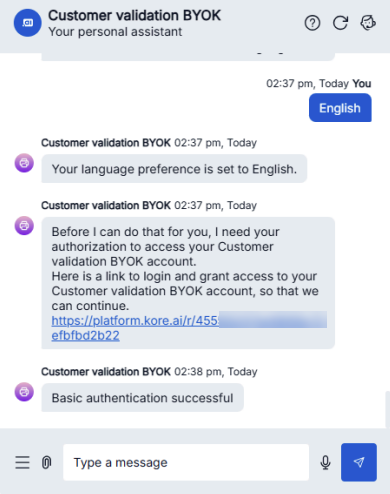
If successful, the system redirects you and displays “Basic authentication successful.” This confirms your encrypted credentials are correctly stored and retrieved using your CMK.


Related resources

AWS KMS Developer Guide

메뉴