はじめに
対話型AIプラットフォーム
チャットボットの概要
自然言語処理(NLP)
ボットの概念と用語
クイックスタートガイド
プラットフォームへのアクセス
ボットビルダーの操作
リリースノート
最新バージョン(英語)
以前のバージョン(英語)
廃止機能(英語)
コンセプト
設計
ストーリーボード
ダイアログタスク
ダイアログタスクとは
ダイアログビルダー
ノードタイプ
インテントノード
ダイアログノード
エンティティノード
フォームノード
確認ノード
ロジックノード
ボットアクションノード
サービスノード
Webhookノード
スクリプトノード
グループノード
エージェント転送ノード
ユーザープロンプト
音声通話プロパティ
イベント ハンドラー
ナレッジグラフ
ナレッジグラフの抽出
ナレッジグラフの構築
ボットにナレッジグラフを追加
グラフの作成
ナレッジグラフの構築
既存のソースからFAQを構築
通知タスク
スモールトーク
デジタルスキル
デジタルフォーム
デジタルビュー
デジタルビューとは
パネル
ウィジェット
トレーニング
トレーニングとは
機械学習
機械学習とは
モデル検証
ファンダメンタルミーニング
ナレッジグラフ
示唆
ランキングおよび解決
NLPの詳細設定
NLPのガイドライン
インテリジェンス
インテリジェンスとは
コンテキスト
コンテキストインテント
割り込み
複数インテントの検出
エンティティの変更
デフォルトの会話
センチメント管理
トーン分析
テストとデバッグ
ボットと会話
発話テスト
バッチテスト
会話テスト
デプロイ
チャネル
公開
分析
ボットの分析
NLPメトリクス
会話フロー
Usage Metrics
封じ込め測定
カスタムダッシュボード
カスタムダッシュボードとは
メタタグ
カスタムダッシュボードとウィジェット
LLM and Generative AI
Introduction
LLM Integration
Kore.ai XO GPT Module
Prompts & Requests Library
Co-Pilot Features
Dynamic Conversations Features
PII and Sensitive Data Anonymization
Guardrails
ユニバーサルボット
ユニバーサルボットとは
ユニバーサルボットの定義
ユニバーサルボットの作成
ユニバーサルボットのトレーニング
ユニバーサルボットのカスタマイズ
他言語の有効化
ストア
プラントと使用
Overview
Usage Plans
Support Plans
Invoices
管理
ボット認証
複数言語対応ボット
個人を特定できる情報の編集
ボット変数の使用
IVRのシステム連携
一般設定
ボット管理
ハウツー
会話スキルの設計
バンキングボットを作成
バンキングボット – 資金の振り替え
バンキングボット – 残高を更新
ナレッジグラフを構築
スマートアラートの予約方法
Integrations
Actions
Actions Overview
Asana
Configure
Templates
Azure OpenAI
Configure
Templates
BambooHR
Configure
Templates
Bitly
Configure
Templates
Confluence
Configure
Templates
DHL
Configure
Templates
Freshdesk
Configure
Templates
Freshservice
Configure
Templates
Google Maps
Configure
Templates
Here
Configure
Templates
HubSpot
Configure
Templates
JIRA
Configure
Templates
Microsoft Graph
Configure
Templates
Open AI
Configure
Templates
Salesforce
Configure
Templates
ServiceNow
Configure
Templates
Stripe
Configure
Templates
Shopify
Configure
Templates
Twilio
Configure
Templates
Zendesk
Configure
Templates
Agents
Agent Transfer Overview
Custom (BotKit)
Drift
Genesys
Intercom
NiceInContact
NiceInContact(User Hub)
Salesforce
ServiceNow
Configure Tokyo and Lower versions
Configure Utah and Higher versions
Unblu
External NLU Adapters
Overview
Dialogflow Engine
Test and Debug
デジタルスキルの設計
デジタルフォームの設定方法
デジタルビューの設定方法
データテーブルのデータの追加方法
データテーブルのデータの更新方法
Add Data from Digital Forms
ボットのトレーニング
示唆の使用方法
インテントとエンティティのパターンの使用方法
コンテキスト切り替えの管理方法
ボットのデプロイ
エージェント転送の設定方法
ボット関数の使用方法
コンテンツ変数の使用方法
グローバル変数の使用方法
ボットの分析
カスタムダッシュボードの作成方法
カスタムタグを使ってフィルタリング
Data
Overview
Guidelines
Data Table
Table Views
App Definitions
Data as Service
Build a Travel Planning Assistant
Travel Assistant Overview
Create a Travel Virtual Assistant
Design Conversation Skills
Create an ‘Update Booking’ Task
Create a Change Flight Task
Build a Knowledge Graph
Schedule a Smart Alert
Design Digital Skills
Configure Digital Forms
Configure Digital Views
Train the Assistant
Use Traits
Use Patterns
Manage Context Switching
Deploy the Assistant
Use Bot Functions
Use Content Variables
Use Global Variables
Use Web SDK
Build a Banking Assistant
APIs & SDKs
API Reference
API Introduction
Rate Limits
API List
koreUtil Libraries
SDK Reference
SDK Introduction
Web SDK
How the Web SDK Works
SDK Security
SDK Registration
Web Socket Connect and RTM
Tutorials
Widget SDK Tutorial
Web SDK Tutorial
BotKit SDK
BotKit SDK Deployment Guide
Installing the BotKit SDK
Using the BotKit SDK
SDK Events
SDK Functions
Installing Botkit in AWS
Tutorials
BotKit - Blue Prism
BotKit - Flight Search Sample VA
BotKit - Agent Transfer

ADMINISTRATION
Intro to Bots Admin Console
Administration Dashboard
User Management
Managing Your Users
Managing Your Groups
Role Management
Manage Data Tables and Views
Bot Management
Enrollment
Inviting Users
Sending Bulk Invites to Enroll Users
Importing Users and User Data
Synchronizing Users from Active Directory
Security & Compliance
Using Single Sign-On
Two-Factor Authentication for Platform Access
Security Settings
Cloud Connector
Analytics for Bots Admin
Billing
  1. ホーム
  2. Docs
  3. Virtual Assistants
  4. Bot Administration
  5. Security & Compliance
  6. BYOK Integration Guide for AWS

BYOK Integration Guide for AWS

Bring Your Own Key (BYOK) encryption in Kore’s public cloud SaaS enables enterprises to retain complete control over their encryption keys while protecting sensitive data. With BYOK, organizations use their own Customer Master Keys (CMKs) to encrypt application and bot data, ensuring stronger security and compliance.

Kore’s BYOK solution integrates with external key management systems such as AWS Key Management Service (KMS). Customers retain ownership of their encryption keys while leveraging Kore’s secure, scalable cloud platform with HSM-backed keys.

Prerequisites

  • Active Kore.ai subscription (platform.kore.ai) with BYOK enabled.
  • AWS account with administrative access to IAM and KMS.
  • Permissions to create IAM roles and policies.
  • Permissions to create and manage KMS keys.

Information Exchange

The BYOK integration requires coordination between you (the customer) and the Kore.ai support team. Key information exchanged between Kore.ai and you is summarized in the table.

Information Description and Purpose Provided By
Service Role ARN The Amazon Resource Name (ARN) of the IAM role in Kore.ai’s AWS account. You add this to your IAM role’s trust policy to allow Kore.ai’s service to assume your role.

Service Role ARN for platform.kore.ai:

arn:aws:iam::358587034707:role/SegBots-Servers-Role

Note: Contact Kore.ai Support if your SaaS instance differs from platform.kore.ai.

Kore.ai
External ID A unique identifier (similar to a password) that Kore.ai uses when assuming your IAM role to prevent unauthorized access.
External ID is auto-populated within the Bot Admin Console. 
Kore.ai
Role ARN The ARN of the IAM role created in your AWS account. Kore.ai assumes this role to access your KMS key.

Example:

arn:aws:iam::<your-account-id>:role/BYOK_Role

Share this with Kore.ai after completing the steps in the Integration Process section.

Customer
CMK ARN The ARN of your Customer Managed Key (CMK) in AWS KMS. This key is used by Kore.ai to encrypt and decrypt your data.

Example:

arn:aws:kms:<region>:<your-account-id>:key/<key-id>

Follow the steps in the Integration Process section to create and share this value.

Integration Process

The BYOK integration involves six main steps:

  1. Create IAM Policy: Define KMS permissions (encrypt, decrypt, generate keys, describe key).
  2. Create IAM Role: Establish a trust relationship with Kore.ai and attach the IAM policy.
  3. Create KMS Key: Set up a Customer Managed Key for encryption operations.
  4. Update KMS Key Policy: Grant the IAM role explicit access to use the KMS key.
  5. Verify Configuration: Confirm all components are correctly configured.
  6. Share Information: Provide your Role ARN and CMK ARN to Kore.ai support.

Step 1: Create IAM Policy

This policy defines the KMS permissions for your BYOK role.
1. Go to AWS Console → IAM → Policies.
2. Click Create policy.
3. Select the JSON tab and paste this policy:

{ "Version": "2012-10-17",
        "Statement": [
        {  
        "Sid": "BYOK KMSPermissions",
        "Effect": "Allow",
        "Action": [
            "kms:Encrypt",
            "kms:Decrypt",
            "kms:GenerateDataKey*",
            "kms:DescribeKey"
                ],
            "Resource": "arn:aws:kms:REGION:ACCOUNT_ID:key/KEY_ID"
                }
            ]
    }

4. Click Next.
5. Name the policy (e.g., BYOK_KMS_Policy).
6. Add an appropriate description, for example: “Policy granting KMS permissions for BYOK integration with Bot Admin Console”.
7. Click Create policy.

Note: Replace REGION, ACCOUNT_ID, and KEY_ID with your values. You can use “Resource”: “*” initially and update it after creating your KMS key.

Step 2: Create IAM Role

This role establishes trust with Kore.ai and uses the policy from Step 1.

  1. Go to AWS Console → IAM → Roles.
  2. Click Create role.
  3. Select AWS Account as the trusted entity type.
  4. Select This account.
  5. Click Next.
  6. Select the BYOK_KMS_Policy from Step 1.
  7. Click Next.
  8. Name the role (e.g., BYOK_Role).
  9. Add an appropriate description, for example: “Role for BYOK integration with Bot Admin Console.”
  10. Click Create role.

Update Trust Policy

Configure the role to trust Kore.ai’s Service Role:

  1. Go to the BYOK_Role you just created.
  2. Click the Trust relationships tab.
  3. Click Edit trust policy.
  4. Replace the policy with the following:
    { "Version": "2012-10-17",
    "Statement": [
    {
    "Effect": "Allow",
        "Principal": {
        "AWS":"arn:aws:iam::358587034707:role/SegBots-Servers-Role"
        },
        "Action": "sts:AssumeRole",
        "Condition": {
        "StringEquals": {
            "sts:ExternalId": "<EXTERNAL-ID-PROVIDED-BY-KORE>"
        }
        }
    }
    ]
    }
    
  5. Click Update policy.

Step 3: Create KMS Key

Create a Customer Managed Key for encryption.

  1. Go to AWS Console → KMS → Customer managed keys.
  2. Click Create key.
  3. Select Symmetric as the key type.
  4. Select Encrypt and decrypt as the key usage.
  5. Click Next.
  6. Enter key details:
    1. An Alias (e.g., byok-kore-ai-key).
    2. An appropriate Description, for example: “Customer managed key for BYOK integration with Bot Admin Console.
  7. Click Next.
  8. Under Key administrators, add your administrator users or roles as those who should manage this key.
  9. Click Next.
  10. Add the BYOK_Role as a key user.
  11. Click Next.
  12. Review the key configuration and click Finish.

Step 4: Update KMS Key Policy

Add the BYOK_Role to the key policy to grant explicit access.

  1. Go to your KMS key.
  2. Click the Key policy tab.
  3. Click Edit.
  4. Add the customer role statement to the existing Statement array (don’t remove other statements).
    {
    "Sid": "Allow use of the key",
    "Effect": "Allow",
    "Principal": {
        "AWS": "arn:aws:iam::ACCOUNT_ID:role/BYOK_Role"
    },
    "Action": [
        "kms:Encrypt",
        "kms:Decrypt",
        "kms:GenerateDataKey*",
        "kms:DescribeKey"
    ],
    "Resource": "*"
    }
    

    Note

    Replace ACCOUNT_ID with your AWS account ID.

  5. Save the policy.

Step 5: Verify Configuration

Confirm all components are correctly configured:

Item Verification
IAM Policy Confirm BYOK_KMS_Policy exists with correct KMS actions.
Policy Attachment Verify policy is attached to BYOK_Role under the Permissions tab.
Trust Relationship Confirm the Trust relationships tab shows Kore.ai Service Role ARN.
KMS Key Policy Verify key policy includes both the root account and BYOK_Role statements.
Key Users Confirm BYOK_Role appears under Key users in the KMS console.

Step 6: Share Information with Kore.ai

Contact Kore.ai support and provide the following:

  • CMK ARN: arn:aws:kms:<region>:<your-account-id>:key/<key-id>
  • Role ARN: arn:aws:iam::<your-account-id>:role/BYOK_Role

The Kore.ai support team will configure the integration (trust relationship between Kore and your AWS tenant) on their end and notify you when it’s complete.

You can now configure and enable data encryption in Bot Admin Console using your AWS KMS, as explained in the next section.

Configure BYOK Encryption in Platform

You can enable BYOK encryption by configuring it within the Bot Admin Console. This process connects your AWS KMS key to the Bot Admin Console. During configuration, you can choose which applications and bots will use it.

Configuration Steps

  1. In the Admin Console, go to Enterprise Key.
  2. Click Create Key under the Bring Your Own Key section.
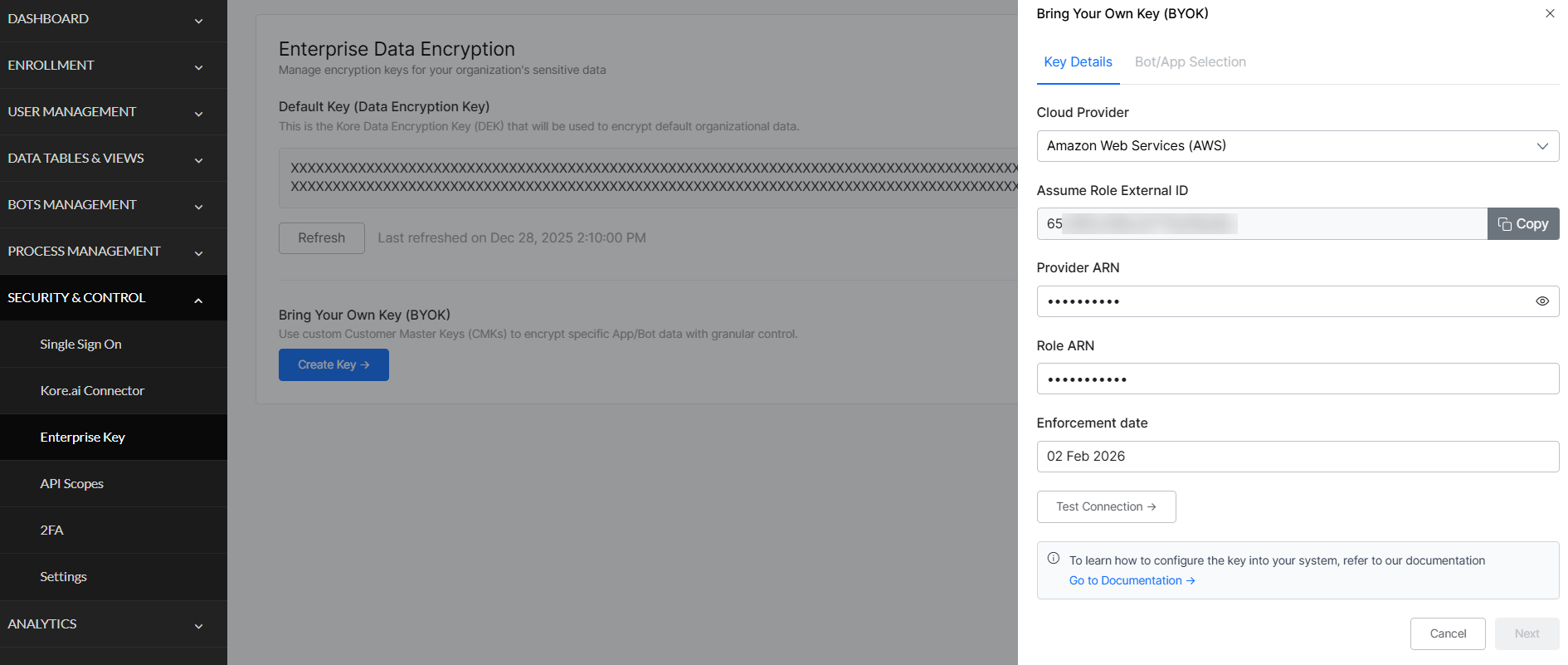
  3. Enter AWS Details:
    • Cloud Provider: Select Amazon Web Services (AWS).
    • Assume Role External ID: Auto-populated.
    • Provider ARN: Enter your CMK ARN.
    • Role ARN: Enter your Role ARN.
  4. Set Enforcement Date: Choose when encryption will begin. This is the date your CMK starts encrypting data.
    Note: You can modify the CMK and retest until the enforcement date. After this date, you can only rotate the key or update which apps/bots are encrypted.
  5. Test Configuration: Click Test Configuration to validate the connection. The system will test the connection to your KMS, authentication, and encryption and decryption operations. Verify all tests pass before continuing.
  6. Select Apps and Bots: Click Next to view all applications and bots in your workspace.
    • All apps and bots are selected by default.
    • Deselect any apps/bots you want to keep on the default Kore.ai encryption.
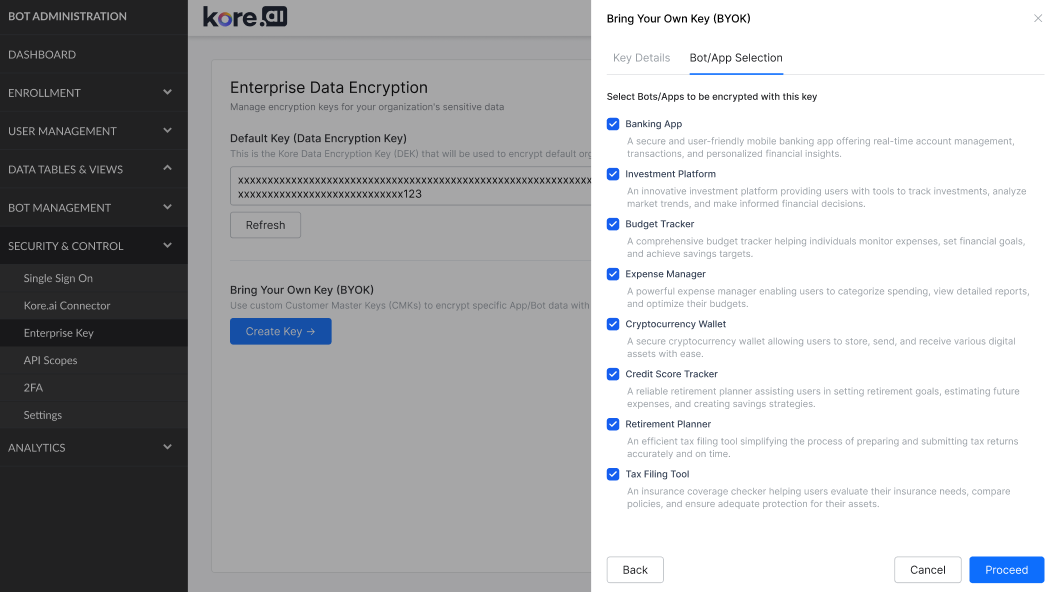
  7. Complete Setup: Click Proceed to complete the process. Your CMK is added to the enterprise keys list, and encryption begins on the enforcement date.

Validation (Optional)

After the enforcement date, You can verify that encryption is working by using one of the following options:

Option 1: View Analytics

Check analytics data for recent chat interactions to confirm that encrypted data is accessible.

Option 2: Test Application Authorization

Open the application and run Authorization Profiles and Dialogs.

  • Execute BasicAuthValidationDialog.
  • When the bot displays the authorization link, click the link and enter the credentials (admin/password).

Example:
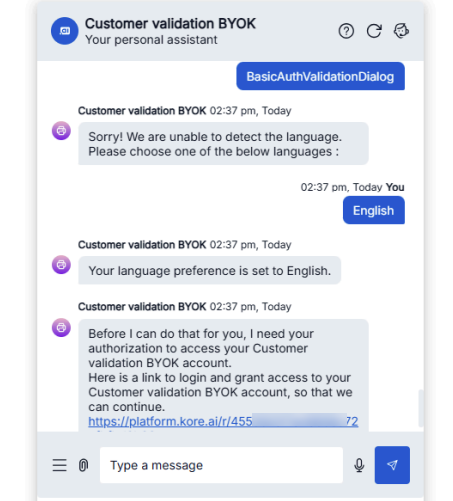
If successful, the system redirects you and displays “Basic authentication successful.” This confirms your encrypted credentials are correctly stored and retrieved using your CMK.


Related resources

AWS KMS Developer Guide

BYOK Integration Guide for AWS

Bring Your Own Key (BYOK) encryption in Kore’s public cloud SaaS enables enterprises to retain complete control over their encryption keys while protecting sensitive data. With BYOK, organizations use their own Customer Master Keys (CMKs) to encrypt application and bot data, ensuring stronger security and compliance.

Kore’s BYOK solution integrates with external key management systems such as AWS Key Management Service (KMS). Customers retain ownership of their encryption keys while leveraging Kore’s secure, scalable cloud platform with HSM-backed keys.

Prerequisites

  • Active Kore.ai subscription (platform.kore.ai) with BYOK enabled.
  • AWS account with administrative access to IAM and KMS.
  • Permissions to create IAM roles and policies.
  • Permissions to create and manage KMS keys.

Information Exchange

The BYOK integration requires coordination between you (the customer) and the Kore.ai support team. Key information exchanged between Kore.ai and you is summarized in the table.

Information Description and Purpose Provided By
Service Role ARN The Amazon Resource Name (ARN) of the IAM role in Kore.ai’s AWS account. You add this to your IAM role’s trust policy to allow Kore.ai’s service to assume your role.

Service Role ARN for platform.kore.ai:

arn:aws:iam::358587034707:role/SegBots-Servers-Role

Note: Contact Kore.ai Support if your SaaS instance differs from platform.kore.ai.

Kore.ai
External ID A unique identifier (similar to a password) that Kore.ai uses when assuming your IAM role to prevent unauthorized access.
External ID is auto-populated within the Bot Admin Console. 
Kore.ai
Role ARN The ARN of the IAM role created in your AWS account. Kore.ai assumes this role to access your KMS key.

Example:

arn:aws:iam::<your-account-id>:role/BYOK_Role

Share this with Kore.ai after completing the steps in the Integration Process section.

Customer
CMK ARN The ARN of your Customer Managed Key (CMK) in AWS KMS. This key is used by Kore.ai to encrypt and decrypt your data.

Example:

arn:aws:kms:<region>:<your-account-id>:key/<key-id>

Follow the steps in the Integration Process section to create and share this value.

Integration Process

The BYOK integration involves six main steps:

  1. Create IAM Policy: Define KMS permissions (encrypt, decrypt, generate keys, describe key).
  2. Create IAM Role: Establish a trust relationship with Kore.ai and attach the IAM policy.
  3. Create KMS Key: Set up a Customer Managed Key for encryption operations.
  4. Update KMS Key Policy: Grant the IAM role explicit access to use the KMS key.
  5. Verify Configuration: Confirm all components are correctly configured.
  6. Share Information: Provide your Role ARN and CMK ARN to Kore.ai support.

Step 1: Create IAM Policy

This policy defines the KMS permissions for your BYOK role.
1. Go to AWS Console → IAM → Policies.
2. Click Create policy.
3. Select the JSON tab and paste this policy:

{ "Version": "2012-10-17",
        "Statement": [
        {  
        "Sid": "BYOK KMSPermissions",
        "Effect": "Allow",
        "Action": [
            "kms:Encrypt",
            "kms:Decrypt",
            "kms:GenerateDataKey*",
            "kms:DescribeKey"
                ],
            "Resource": "arn:aws:kms:REGION:ACCOUNT_ID:key/KEY_ID"
                }
            ]
    }

4. Click Next.
5. Name the policy (e.g., BYOK_KMS_Policy).
6. Add an appropriate description, for example: “Policy granting KMS permissions for BYOK integration with Bot Admin Console”.
7. Click Create policy.

Note: Replace REGION, ACCOUNT_ID, and KEY_ID with your values. You can use “Resource”: “*” initially and update it after creating your KMS key.

Step 2: Create IAM Role

This role establishes trust with Kore.ai and uses the policy from Step 1.

  1. Go to AWS Console → IAM → Roles.
  2. Click Create role.
  3. Select AWS Account as the trusted entity type.
  4. Select This account.
  5. Click Next.
  6. Select the BYOK_KMS_Policy from Step 1.
  7. Click Next.
  8. Name the role (e.g., BYOK_Role).
  9. Add an appropriate description, for example: “Role for BYOK integration with Bot Admin Console.”
  10. Click Create role.

Update Trust Policy

Configure the role to trust Kore.ai’s Service Role:

  1. Go to the BYOK_Role you just created.
  2. Click the Trust relationships tab.
  3. Click Edit trust policy.
  4. Replace the policy with the following:
    { "Version": "2012-10-17",
    "Statement": [
    {
    "Effect": "Allow",
        "Principal": {
        "AWS":"arn:aws:iam::358587034707:role/SegBots-Servers-Role"
        },
        "Action": "sts:AssumeRole",
        "Condition": {
        "StringEquals": {
            "sts:ExternalId": "<EXTERNAL-ID-PROVIDED-BY-KORE>"
        }
        }
    }
    ]
    }
    
  5. Click Update policy.

Step 3: Create KMS Key

Create a Customer Managed Key for encryption.

  1. Go to AWS Console → KMS → Customer managed keys.
  2. Click Create key.
  3. Select Symmetric as the key type.
  4. Select Encrypt and decrypt as the key usage.
  5. Click Next.
  6. Enter key details:
    1. An Alias (e.g., byok-kore-ai-key).
    2. An appropriate Description, for example: “Customer managed key for BYOK integration with Bot Admin Console.
  7. Click Next.
  8. Under Key administrators, add your administrator users or roles as those who should manage this key.
  9. Click Next.
  10. Add the BYOK_Role as a key user.
  11. Click Next.
  12. Review the key configuration and click Finish.

Step 4: Update KMS Key Policy

Add the BYOK_Role to the key policy to grant explicit access.

  1. Go to your KMS key.
  2. Click the Key policy tab.
  3. Click Edit.
  4. Add the customer role statement to the existing Statement array (don’t remove other statements).
    {
    "Sid": "Allow use of the key",
    "Effect": "Allow",
    "Principal": {
        "AWS": "arn:aws:iam::ACCOUNT_ID:role/BYOK_Role"
    },
    "Action": [
        "kms:Encrypt",
        "kms:Decrypt",
        "kms:GenerateDataKey*",
        "kms:DescribeKey"
    ],
    "Resource": "*"
    }
    

    Note

    Replace ACCOUNT_ID with your AWS account ID.

  5. Save the policy.

Step 5: Verify Configuration

Confirm all components are correctly configured:

Item Verification
IAM Policy Confirm BYOK_KMS_Policy exists with correct KMS actions.
Policy Attachment Verify policy is attached to BYOK_Role under the Permissions tab.
Trust Relationship Confirm the Trust relationships tab shows Kore.ai Service Role ARN.
KMS Key Policy Verify key policy includes both the root account and BYOK_Role statements.
Key Users Confirm BYOK_Role appears under Key users in the KMS console.

Step 6: Share Information with Kore.ai

Contact Kore.ai support and provide the following:

  • CMK ARN: arn:aws:kms:<region>:<your-account-id>:key/<key-id>
  • Role ARN: arn:aws:iam::<your-account-id>:role/BYOK_Role

The Kore.ai support team will configure the integration (trust relationship between Kore and your AWS tenant) on their end and notify you when it’s complete.

You can now configure and enable data encryption in Bot Admin Console using your AWS KMS, as explained in the next section.

Configure BYOK Encryption in Platform

You can enable BYOK encryption by configuring it within the Bot Admin Console. This process connects your AWS KMS key to the Bot Admin Console. During configuration, you can choose which applications and bots will use it.

Configuration Steps

  1. In the Admin Console, go to Enterprise Key.
  2. Click Create Key under the Bring Your Own Key section.
  3. Enter AWS Details:
    • Cloud Provider: Select Amazon Web Services (AWS).
    • Assume Role External ID: Auto-populated.
    • Provider ARN: Enter your CMK ARN.
    • Role ARN: Enter your Role ARN.
  4. Set Enforcement Date: Choose when encryption will begin. This is the date your CMK starts encrypting data.
    Note: You can modify the CMK and retest until the enforcement date. After this date, you can only rotate the key or update which apps/bots are encrypted.
  5. Test Configuration: Click Test Configuration to validate the connection. The system will test the connection to your KMS, authentication, and encryption and decryption operations. Verify all tests pass before continuing.
  6. Select Apps and Bots: Click Next to view all applications and bots in your workspace.
    • All apps and bots are selected by default.
    • Deselect any apps/bots you want to keep on the default Kore.ai encryption.
  7. Complete Setup: Click Proceed to complete the process. Your CMK is added to the enterprise keys list, and encryption begins on the enforcement date.

Validation (Optional)

After the enforcement date, You can verify that encryption is working by using one of the following options:

Option 1: View Analytics

Check analytics data for recent chat interactions to confirm that encrypted data is accessible.

Option 2: Test Application Authorization

Open the application and run Authorization Profiles and Dialogs.

  • Execute BasicAuthValidationDialog.
  • When the bot displays the authorization link, click the link and enter the credentials (admin/password).

Example:
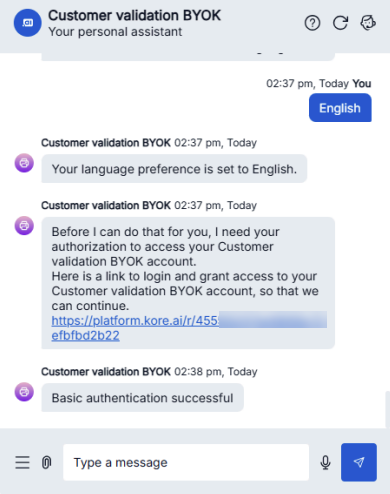
If successful, the system redirects you and displays “Basic authentication successful.” This confirms your encrypted credentials are correctly stored and retrieved using your CMK.


Related resources

AWS KMS Developer Guide

メニュー