GETTING STARTED
Kore.ai XO Platform
Virtual Assistants Overview
Natural Language Processing (NLP)
Concepts and Terminology
Quick Start Guide
Accessing the Platform
Navigating the Kore.ai XO Platform
Building a Virtual Assistant
Help & Learning Resources
Release Notes
Current Version
Recent Updates
Previous Versions
Deprecations
Request a Feature
CONCEPTS
Design
Storyboard
Overview
FAQs
Conversation Designer
Overview
Dialog Tasks
Mock Scenes
Dialog Tasks
Overview
Navigate Dialog Tasks
Build Dialog Tasks
Node Types
Overview
Intent Node
Dialog Node
Dynamic Intent Node
GenAI Node
GenAI Prompt
Entity Node
Form Node
Confirmation Node
Message Nodes
Logic Node
Bot Action Node
Service Node
Webhook Node
Script Node
Process Node
Agent Transfer
Node Connections
Node Connections Setup
Sub-Intent Scoping
Entity Types
Entity Rules
User Prompts or Messages
Voice Call Properties
Knowledge AI
Introduction
Knowledge Graph
Introduction
Terminology
Build a Knowledge Graph
Manage FAQs
Knowledge Extraction
Import or Export Knowledge Graph
Prepare Data for Import
Importing Knowledge Graph
Exporting Knowledge Graph
Auto-Generate Knowledge Graph
Knowledge Graph Analysis
Answer from Documents
Alert Tasks
Small Talk
Digital Skills
Overview
Digital Forms
Digital Views
Introduction
Widgets
Panels
Session and Context Variables
Context Object
Intent Discovery
Train
NLP Optimization
ML Engine
Overview
Model Validation
FM Engine
KG Engine
Traits Engine
Ranking and Resolver
Training Validations
NLP Configurations
NLP Guidelines
LLM and Generative AI
Introduction
LLM Integration
Kore.ai XO GPT Module
Prompts & Requests Library
Co-Pilot Features
Dynamic Conversations Features
Intelligence
Introduction
Event Handlers
Contextual Memory
Contextual Intents
Interruption Management
Multi-intent Detection
Amending Entities
Default Conversations
Conversation Driven Dialog Builder
Sentinment Management
Tone Analysis
Default Standard Responses
Ignore Words & Field Memory
Test & Debug
Overview
Talk to Bot
Utterance Testing
Batch Testing
Conversation Testing
Conversation Testing Overview
Create a Test Suite
Test Editor
Test Case Assertion
Test Case Execution Summary
Glossary
Health and Monitoring
NLP Health
Flow Health
Integrations
Actions
Actions Overview
Asana
Configure
Templates
Azure OpenAI
Configure
Templates
BambooHR
Configure
Templates
Bitly
Configure
Templates
Confluence
Configure
Templates
DHL
Configure
Templates
Freshdesk
Configure
Templates
Freshservice
Configure
Templates
Google Maps
Configure
Templates
Here
Configure
Templates
HubSpot
Configure
Templates
JIRA
Configure
Templates
Microsoft Graph
Configure
Templates
Open AI
Configure
Templates
Salesforce
Configure
Templates
ServiceNow
Configure
Templates
Stripe
Configure
Templates
Shopify
Configure
Templates
Twilio
Configure
Templates
Zendesk
Configure
Templates
Agents
Agent Transfer Overview
Custom (BotKit)
Drift
Genesys
Intercom
NiceInContact
NiceInContact(User Hub)
Salesforce
ServiceNow
Configure Tokyo and Lower versions
Configure Utah and Higher versions
Unblu
External NLU Adapters
Overview
Dialogflow Engine
Test and Debug
Deploy
Channels
Publishing
Versioning
Analyze
Introduction
Dashboard Filters
Overview Dashboard
Conversations Dashboard
Users Dashboard
Performance Dashboard
Custom Dashboards
Introduction
Custom Meta Tags
Create Custom Dashboard
Create Custom Dashboard Filters
LLM and Generative AI Logs
NLP Insights
Task Execution Logs
Conversations History
Conversation Flows
Conversation Insights
Feedback Analytics
Usage Metrics
Containment Metrics
Universal Bots
Introduction
Universal Bot Definition
Universal Bot Creation
Training a Universal Bot
Universal Bot Customizations
Enabling Languages
Store
Manage Assistant
Team Collaboration
Plan & Usage
Overview
Usage Plans
Templates
Support Plans
Invoices
Authorization
Conversation Sessions
Multilingual Virtual Assistants
Get Started
Supported Components & Features
Manage Languages
Manage Translation Services
Multiingual Virtual Assistant Behavior
Feedback Survey
Masking PII Details
Variables
Collections
IVR Settings
General Settings
Assistant Management
Manage Namespace
Data
Overview
Data Table
Table Views
App Definitions
Data as Service
HOW TOs
Build a Travel Planning Assistant
Travel Assistant Overview
Create a Travel Virtual Assistant
Design Conversation Skills
Create an ‘Update Booking’ Task
Create a Change Flight Task
Build a Knowledge Graph
Schedule a Smart Alert
Design Digital Skills
Configure Digital Forms
Configure Digital Views
Train the Assistant
Use Traits
Use Patterns
Manage Context Switching
Deploy the Assistant
Use Bot Functions
Use Content Variables
Use Global Variables
Use Web SDK
Build a Banking Assistant
Design Conversation Skills
Create a Sample Banking Assistant
Create a Transfer Funds Task
Create a Update Balance Task
Create a Knowledge Graph
Set Up a Smart Alert
Design Digital Skills
Configure Digital Forms
Configure Digital Views
Add Data to Data Tables
Update Data in Data Tables
Add Data from Digital Forms
Train the Assistant
Composite Entities
Use Traits
Use Patterns for Intents & Entities
Manage Context Switching
Deploy the Assistant
Configure an Agent Transfer
Use Assistant Functions
Use Content Variables
Use Global Variables
Intent Scoping using Group Node
Analyze the Assistant
Create a Custom Dashboard
Use Custom Meta Tags in Filters
Migrate External Bots
Google Dialogflow Bot
APIs & SDKs
API Reference
API Introduction
Rate Limits
API List
koreUtil Libraries
SDK Reference
SDK Introduction
Web SDK
How the Web SDK Works
SDK Security
SDK Registration
Web Socket Connect and RTM
Tutorials
Widget SDK Tutorial
Web SDK Tutorial
BotKit SDK
BotKit SDK Deployment Guide
Installing the BotKit SDK
Using the BotKit SDK
SDK Events
SDK Functions
Tutorials
BotKit - Blue Prism
BotKit - Flight Search Sample VA
BotKit - Agent Transfer
  1. ホーム
  2. Docs
  3. Virtual Assistants
  4. Builder
  5. Knowledge Graph
  6. ボットオントロジーのインポートとエクスポート

ボットオントロジーのインポートとエクスポート

CSVまたはJSONファイルでナレッジグラフを構築し、ボットにアップロードすることができます。同様に、既存のナレッジグラフをCSVまたはJSONにエクスポートすることができます。ナレッジグラフをエクスポートすると、スプレッドシートで編集したり、他のボットにインポートしたりするのに役立ちます。最大50kのFAQを最大20kノードに分散させるというプラットフォームの制限があります。この数を超えるファイルのインポートは拒否されます。

ナレッジグラフのインポート

  1. KGをインポートしたいボットを開き、構築タブを選択します。
  2. 左側ペインで、会話スキル -> ナレッジグラフをクリックします。
  3. インポートオプションは、それぞれのナレッジグラフにあります。
  4. インポートをクリックします。
  5. インポートダイアログボックスで、以下のいずれかを実行します。
    • ナレッジグラフをゼロから作成する場合は、続行をクリックします。(または)
    • 既存のナレッジグラフがある場合は、必ず、CSVまたはJSONファイルにバックアップを取ってから、続行します。
      メモ:ナレッジグラフをインポートしてもそれは更新されず、既存のナレッジグラフ全体が置き換わります。
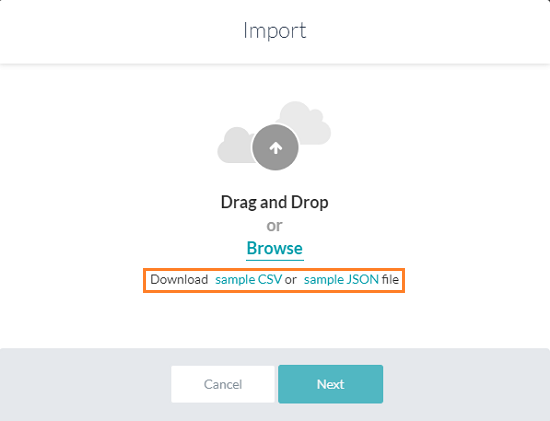
  6. 「インポート」ウィンドウにファイルをドラッグアンドドロップするか、あるいはブラウズをクリックして、ファイルを探します。
  7. 次へをクリックして、インポートを開始します。
  8. インポートが完了すると、ダイアログボックスに成功のメッセージが表示されます。完了をクリックします。
  9. 階層はナレッジグラフに表示され、同じものを編集およびトレーニングすることができます。

ナレッジグラフのエクスポート

ナレッジグラフをエクスポートするには、以下の手順に従います。

  1. 左側ペインで、会話スキル -> ナレッジグラフをクリックします。
  2. エクスポートオプションは、それぞれのナレッジグラフにあります。
  3. 希望する形式に従って、JSONのエクスポートまたはCSVのエクスポートをクリックします。
  4. ナレッジグラフファイルがマシンにダウンロードされます。

ナレッジグラフの作成

プラットフォームのUIからナレッジグラフを作成するのではなく、スプレッドシートのような希望するエディターで、あるいはJSONファイルとして作業することができます。このプラットフォームでは、スプレッドシートまたはJSONでナレッジグラフを作成し、それを使用してボットにインポートするオプションが提供されています。インポートするには、以下の手順に従います。

  1. サンプルのCSVまたはJSONファイルをダウンロードします。これらのサンプルファイルは、空のナレッジグラフからもダウンロードすることができます。
  2. 質問、応答、同義語などに対応する行を追加して、ファイルを編集します。
  3. ファイルをボットにインポートします。

CSVファイルから

ナレッジグラフは、ボットからダウンロードできるサンプルのスプレッドシートを使用して作成することができます。ナレッジグラフを頻繁に変更することが予想される場合、アプリケーションのUIと比較して一括更新が容易にできるので、スプレッドシートで作成することをお勧めします。以下の手順に従って、スプレッドシートでナレッジグラフを構築します。

サンプルCSVファイルのダウンロード

  1. 左側ペインで、ボットタスク > ナレッジグラフをクリックします。
  2. インポートオプションは、それぞれのナレッジグラフにあります。
  3. 続行する前に、ナレッジグラフを バックアップするように指示されています。バックアップのCSVまたはJSON形式を選択します。
  4. バックアップ後、続行をクリックします。
  5. 対応するダイアログボックスで、サンプルCSVをクリックします。CSVファイルがローカルコンピュータにダウンロードされます。
Build the Knowledge Graph in a CSV

The format for the CSV file includes details regarding alternate answers, extended responses, and advanced responses.

  • The following types of entries are supported:
    • Faq – The leaf level nodes with questions and answers.
    • Node – For node/tags, traits, preconditions, and output context.
    • Synonyms
    • KG Params
    • Traits
  • Each of the above categories needs to be preceded by the appropriate header.
  • The header helps identify the new vs old versions of the JSON file by the platform.

The following is the detailed information for each section and the content expected for each.

FAQ

This contains the actual questions and answers along with the alternate questions, answers, and extended answers.

Following are the column-wise details that can be given:

  • Faq – Mandatory entry in the header, must be left blank in the following rows.
  • Que ID – The Question ID is auto-generated by the platform. This field uniquely identifies the FAQs and it should not be added or edited manually.  Leave this field blank if you are adding a new FAQ. Do not alter the value of this field if you are updating an existing FAQ. Do not manually add any data in this field.
  • Path – To which the FAQ belongs
    • Mandatory node names must be prefixed with ** and organizer nodes with !!
  • Primary Question – The actual question user might ask: When left blank, the entry in the Answer column is considered as the alternative answer to the previous primary question.
  • Alternate Question – Optional: Alternate question to the primary question if there are multiple alternate questions, they must be given in multiple rows.
  • Tags – For each question or alternate question.
  • Answer – Answer to the question serves as an alternate answer when the primary question field is left blank. Answer format can be:
    • Plain text
    • Script with SYS_SCRIPT prefix i.e. SYS_SCRIPT <answer in javascript format>
    • Channel-specific formatted response when prefixed with SYS_CHANNEL_<channel-name>, the answer can be simple or in script format:
      • SYS_CHANNEL_<channel-name> SYS_TEXT <answer>
      • SYS_CHANNEL_<channel-name> SYS_SCRIPT <answer in javascript format>
    • Trigger a dialog then prefix with SYS_INTENT i.e. SYS_INTENT <dialog ref id>
  • Extended Answer-1: Optional to be used in case the response is lengthy.
  • Extended Answer-2: Optional to be used in case the response is lengthy.
  • ReferenceId – reference to any external content used as a source for this FAQ
  • Display Name – The name that would be used for presenting the FAQ to the end-users in case of ambiguity.

Nodes

This section includes settings for both nodes and tags.

  • Node – Mandatory entry in the header must be blank in the following rows.
  • Que ID – The Question ID is auto-generated by the platform. This field uniquely identifies the FAQs and it should not be added or edited manually.  Leave this field blank if you are adding a new FAQ. Do not alter the value of this field if you are updating an existing FAQ. Do not manually add any data in this field.
  • Nodepath – Path for reaching the node/tag.
  • Tag – Mandatory for tag settings, leave blank for node.
  • Precondition – For qualifying this node/tag.
  • outputcontext – Context to be populated by this node/tag.
  • Traits – for this node/tag.

Synonyms

Use this section to enter the synonyms as key-value pairs.

  • Synonyms – Mandatory entry in the header, must be blank in the following rows.
  • Phrase – for which the synonym needs to be entered.
  • Synonyms – Comma-separated values.

Use of bot synonyms in KG term identification can be enabled using the following:

  • confidenceConfigs – Mandatory entry in the header, must be blank in the following rows.
  • parameter – useBotSynonyms in this case
  • value – true or false

KG Params

  • KG Params – mandatory entry in the header, must be blank in the following rows.
  • lang – Bot language code. For example, en for English.
  • stopwords – Comma-separated values.

Traits

Trait related information can be specified as follows:

  • Traits – Mandatory entry in the header, must be blank in the following rows.
  • lang – Bot language code. For example, en for English.
  • GroupName – Trait group name.
  • matchStrategy – Pattern or probability (for ML-based).
  • scoreThreshold – Threshold value (between 0 and 1) when the matchStrategy above is set to ML-based.
  • TraitName – The name of the trait.
  • Training data – Utterances for the trait.

For Taxonomy Based KG, the following fields can be included if there are one or more faqs linked to another faq in the KG. :

  • faqLinkedTo – The faqLinkedto field identifies the source FAQ to which another FAQ is linked to. The faqLinkedTo field must contain a single, valid ‘Que ID’ of the source FAQ. ‘Que Id’ should be a valid identity generated by the platform. Do not give a reference to an FAQ that is already linked to another FAQ..
  • faqLinkedBy – The faqLinkedBy field contains the list of ‘Que Ids’ of the FAQs that are linked to a particular FAQ. ‘Que Id’ should be a valid identity generated by the platform.
  • isSoftDeleted – The isSoftDeleted field is used to identify the FAQs that are deleted but it has one or more FAQs linked to it.

JSONファイルから

Kore.aiでは、ナレッジグラフをJSONで作成し、アップロードすることができます。その構造を理解するために、ボットからサンプルのJSONをダウンロードすることができます。以下の指示に従い、JSONを使用してナレッジグラフを構築します。

JSONサンプルのダウンロード

  1. 左側ペインで、会話スキル -> ナレッジグラフをクリックします。
  2. インポートオプションは、それぞれのナレッジグラフにあります。
  3. 続行する前に、ナレッジグラフを バックアップするように指示されています。バックアップのCSVまたはJSON形式を選択します。
  4. バックアップ後、続行をクリックします。
  5. 対応するダイアログボックスで、サンプルJSONをクリックします。JSONファイルがローカルコンピュータにダウンロードされます。

JSONリファレンス

プロパティ名 タイプ 説明
FAQ 配列

以下のもので構成されています。

  • 質問
  • 回答
  • パスの第1レベルノードまでのリーフおよび親ノード
  • 代替質問
質問 文字列 プライマリ質問:FAQの配列に含まれる。
回答 文字列 ボット対応:FAQの配列に含まれる。
用語 配列 質問が追加されたリーフノードと、第1レベルノードまでの親を含む。
refId 文字列 このFAQのソースとして使用される外部コンテンツへの任意の参照
代替質問 配列 代替質問と用語で構成されています。リーフから第1レベルノードまでのアイテムを含む。
同義語 オブジェクト 用語とその同義語の配列で構成される。
Unmappedpath 配列 質問を持たないノードと、第1レベルノードまでのそのすべての親ノードの配列から構成される。
特性 オブジェクト キーとして特性の名前、値としての発話の配列から構成される。

タクソノミベースのKGでは、KG内の他のFAQにリンクしているFAQが1つ以上ある場合、以下のフィールドを含めることができます。:

  • faqLinkedTo – ソースのFAQを識別するため。
  • faqLinkedBy – リンクされたFAQを識別するため。
  • isSoftDeleted – FAQは削除されたが、まだいくつかのリンクされたFAQがあることを識別するため。

ボットオントロジーのインポートとエクスポート

CSVまたはJSONファイルでナレッジグラフを構築し、ボットにアップロードすることができます。同様に、既存のナレッジグラフをCSVまたはJSONにエクスポートすることができます。ナレッジグラフをエクスポートすると、スプレッドシートで編集したり、他のボットにインポートしたりするのに役立ちます。最大50kのFAQを最大20kノードに分散させるというプラットフォームの制限があります。この数を超えるファイルのインポートは拒否されます。

ナレッジグラフのインポート

  1. KGをインポートしたいボットを開き、構築タブを選択します。
  2. 左側ペインで、会話スキル -> ナレッジグラフをクリックします。
  3. インポートオプションは、それぞれのナレッジグラフにあります。
  4. インポートをクリックします。
  5. インポートダイアログボックスで、以下のいずれかを実行します。
    • ナレッジグラフをゼロから作成する場合は、続行をクリックします。(または)
    • 既存のナレッジグラフがある場合は、必ず、CSVまたはJSONファイルにバックアップを取ってから、続行します。
      メモ:ナレッジグラフをインポートしてもそれは更新されず、既存のナレッジグラフ全体が置き換わります。
  6. 「インポート」ウィンドウにファイルをドラッグアンドドロップするか、あるいはブラウズをクリックして、ファイルを探します。
  7. 次へをクリックして、インポートを開始します。
  8. インポートが完了すると、ダイアログボックスに成功のメッセージが表示されます。完了をクリックします。
  9. 階層はナレッジグラフに表示され、同じものを編集およびトレーニングすることができます。

ナレッジグラフのエクスポート

ナレッジグラフをエクスポートするには、以下の手順に従います。

  1. 左側ペインで、会話スキル -> ナレッジグラフをクリックします。
  2. エクスポートオプションは、それぞれのナレッジグラフにあります。
  3. 希望する形式に従って、JSONのエクスポートまたはCSVのエクスポートをクリックします。
  4. ナレッジグラフファイルがマシンにダウンロードされます。

ナレッジグラフの作成

プラットフォームのUIからナレッジグラフを作成するのではなく、スプレッドシートのような希望するエディターで、あるいはJSONファイルとして作業することができます。このプラットフォームでは、スプレッドシートまたはJSONでナレッジグラフを作成し、それを使用してボットにインポートするオプションが提供されています。インポートするには、以下の手順に従います。

  1. サンプルのCSVまたはJSONファイルをダウンロードします。これらのサンプルファイルは、空のナレッジグラフからもダウンロードすることができます。
  2. 質問、応答、同義語などに対応する行を追加して、ファイルを編集します。
  3. ファイルをボットにインポートします。

CSVファイルから

ナレッジグラフは、ボットからダウンロードできるサンプルのスプレッドシートを使用して作成することができます。ナレッジグラフを頻繁に変更することが予想される場合、アプリケーションのUIと比較して一括更新が容易にできるので、スプレッドシートで作成することをお勧めします。以下の手順に従って、スプレッドシートでナレッジグラフを構築します。

サンプルCSVファイルのダウンロード

  1. 左側ペインで、ボットタスク > ナレッジグラフをクリックします。
  2. インポートオプションは、それぞれのナレッジグラフにあります。
  3. 続行する前に、ナレッジグラフを バックアップするように指示されています。バックアップのCSVまたはJSON形式を選択します。
  4. バックアップ後、続行をクリックします。
  5. 対応するダイアログボックスで、サンプルCSVをクリックします。CSVファイルがローカルコンピュータにダウンロードされます。

Build the Knowledge Graph in a CSV

The format for the CSV file includes details regarding alternate answers, extended responses, and advanced responses.

  • The following types of entries are supported:
    • Faq – The leaf level nodes with questions and answers.
    • Node – For node/tags, traits, preconditions, and output context.
    • Synonyms
    • KG Params
    • Traits
  • Each of the above categories needs to be preceded by the appropriate header.
  • The header helps identify the new vs old versions of the JSON file by the platform.

The following is the detailed information for each section and the content expected for each.

FAQ

This contains the actual questions and answers along with the alternate questions, answers, and extended answers.

Following are the column-wise details that can be given:

  • Faq – Mandatory entry in the header, must be left blank in the following rows.
  • Que ID – The Question ID is auto-generated by the platform. This field uniquely identifies the FAQs and it should not be added or edited manually.  Leave this field blank if you are adding a new FAQ. Do not alter the value of this field if you are updating an existing FAQ. Do not manually add any data in this field.
  • Path – To which the FAQ belongs
    • Mandatory node names must be prefixed with ** and organizer nodes with !!
  • Primary Question – The actual question user might ask: When left blank, the entry in the Answer column is considered as the alternative answer to the previous primary question.
  • Alternate Question – Optional: Alternate question to the primary question if there are multiple alternate questions, they must be given in multiple rows.
  • Tags – For each question or alternate question.
  • Answer – Answer to the question serves as an alternate answer when the primary question field is left blank. Answer format can be:
    • Plain text
    • Script with SYS_SCRIPT prefix i.e. SYS_SCRIPT <answer in javascript format>
    • Channel-specific formatted response when prefixed with SYS_CHANNEL_<channel-name>, the answer can be simple or in script format:
      • SYS_CHANNEL_<channel-name> SYS_TEXT <answer>
      • SYS_CHANNEL_<channel-name> SYS_SCRIPT <answer in javascript format>
    • Trigger a dialog then prefix with SYS_INTENT i.e. SYS_INTENT <dialog ref id>
  • Extended Answer-1: Optional to be used in case the response is lengthy.
  • Extended Answer-2: Optional to be used in case the response is lengthy.
  • ReferenceId – reference to any external content used as a source for this FAQ
  • Display Name – The name that would be used for presenting the FAQ to the end-users in case of ambiguity.

Nodes

This section includes settings for both nodes and tags.

  • Node – Mandatory entry in the header must be blank in the following rows.
  • Que ID – The Question ID is auto-generated by the platform. This field uniquely identifies the FAQs and it should not be added or edited manually.  Leave this field blank if you are adding a new FAQ. Do not alter the value of this field if you are updating an existing FAQ. Do not manually add any data in this field.
  • Nodepath – Path for reaching the node/tag.
  • Tag – Mandatory for tag settings, leave blank for node.
  • Precondition – For qualifying this node/tag.
  • outputcontext – Context to be populated by this node/tag.
  • Traits – for this node/tag.

Synonyms

Use this section to enter the synonyms as key-value pairs.

  • Synonyms – Mandatory entry in the header, must be blank in the following rows.
  • Phrase – for which the synonym needs to be entered.
  • Synonyms – Comma-separated values.

Use of bot synonyms in KG term identification can be enabled using the following:

  • confidenceConfigs – Mandatory entry in the header, must be blank in the following rows.
  • parameter – useBotSynonyms in this case
  • value – true or false

KG Params

  • KG Params – mandatory entry in the header, must be blank in the following rows.
  • lang – Bot language code. For example, en for English.
  • stopwords – Comma-separated values.

Traits

Trait related information can be specified as follows:

  • Traits – Mandatory entry in the header, must be blank in the following rows.
  • lang – Bot language code. For example, en for English.
  • GroupName – Trait group name.
  • matchStrategy – Pattern or probability (for ML-based).
  • scoreThreshold – Threshold value (between 0 and 1) when the matchStrategy above is set to ML-based.
  • TraitName – The name of the trait.
  • Training data – Utterances for the trait.

For Taxonomy Based KG, the following fields can be included if there are one or more faqs linked to another faq in the KG. :

  • faqLinkedTo – The faqLinkedto field identifies the source FAQ to which another FAQ is linked to. The faqLinkedTo field must contain a single, valid ‘Que ID’ of the source FAQ. ‘Que Id’ should be a valid identity generated by the platform. Do not give a reference to an FAQ that is already linked to another FAQ..
  • faqLinkedBy – The faqLinkedBy field contains the list of ‘Que Ids’ of the FAQs that are linked to a particular FAQ. ‘Que Id’ should be a valid identity generated by the platform.
  • isSoftDeleted – The isSoftDeleted field is used to identify the FAQs that are deleted but it has one or more FAQs linked to it.

JSONファイルから

Kore.aiでは、ナレッジグラフをJSONで作成し、アップロードすることができます。その構造を理解するために、ボットからサンプルのJSONをダウンロードすることができます。以下の指示に従い、JSONを使用してナレッジグラフを構築します。

JSONサンプルのダウンロード

  1. 左側ペインで、会話スキル -> ナレッジグラフをクリックします。
  2. インポートオプションは、それぞれのナレッジグラフにあります。
  3. 続行する前に、ナレッジグラフを バックアップするように指示されています。バックアップのCSVまたはJSON形式を選択します。
  4. バックアップ後、続行をクリックします。
  5. 対応するダイアログボックスで、サンプルJSONをクリックします。JSONファイルがローカルコンピュータにダウンロードされます。

JSONリファレンス

プロパティ名 タイプ 説明
FAQ 配列

以下のもので構成されています。

  • 質問
  • 回答
  • パスの第1レベルノードまでのリーフおよび親ノード
  • 代替質問
質問 文字列 プライマリ質問:FAQの配列に含まれる。
回答 文字列 ボット対応:FAQの配列に含まれる。
用語 配列 質問が追加されたリーフノードと、第1レベルノードまでの親を含む。
refId 文字列 このFAQのソースとして使用される外部コンテンツへの任意の参照
代替質問 配列 代替質問と用語で構成されています。リーフから第1レベルノードまでのアイテムを含む。
同義語 オブジェクト 用語とその同義語の配列で構成される。
Unmappedpath 配列 質問を持たないノードと、第1レベルノードまでのそのすべての親ノードの配列から構成される。
特性 オブジェクト キーとして特性の名前、値としての発話の配列から構成される。

タクソノミベースのKGでは、KG内の他のFAQにリンクしているFAQが1つ以上ある場合、以下のフィールドを含めることができます。:

  • faqLinkedTo – ソースのFAQを識別するため。
  • faqLinkedBy – リンクされたFAQを識別するため。
  • isSoftDeleted – FAQは削除されたが、まだいくつかのリンクされたFAQがあることを識別するため。
メニュー
